Everything it does
Six screens, one window: peek under the hood and fix what you find. Press Win+Alt+Del to open it from anywhere. More tools are on the way.
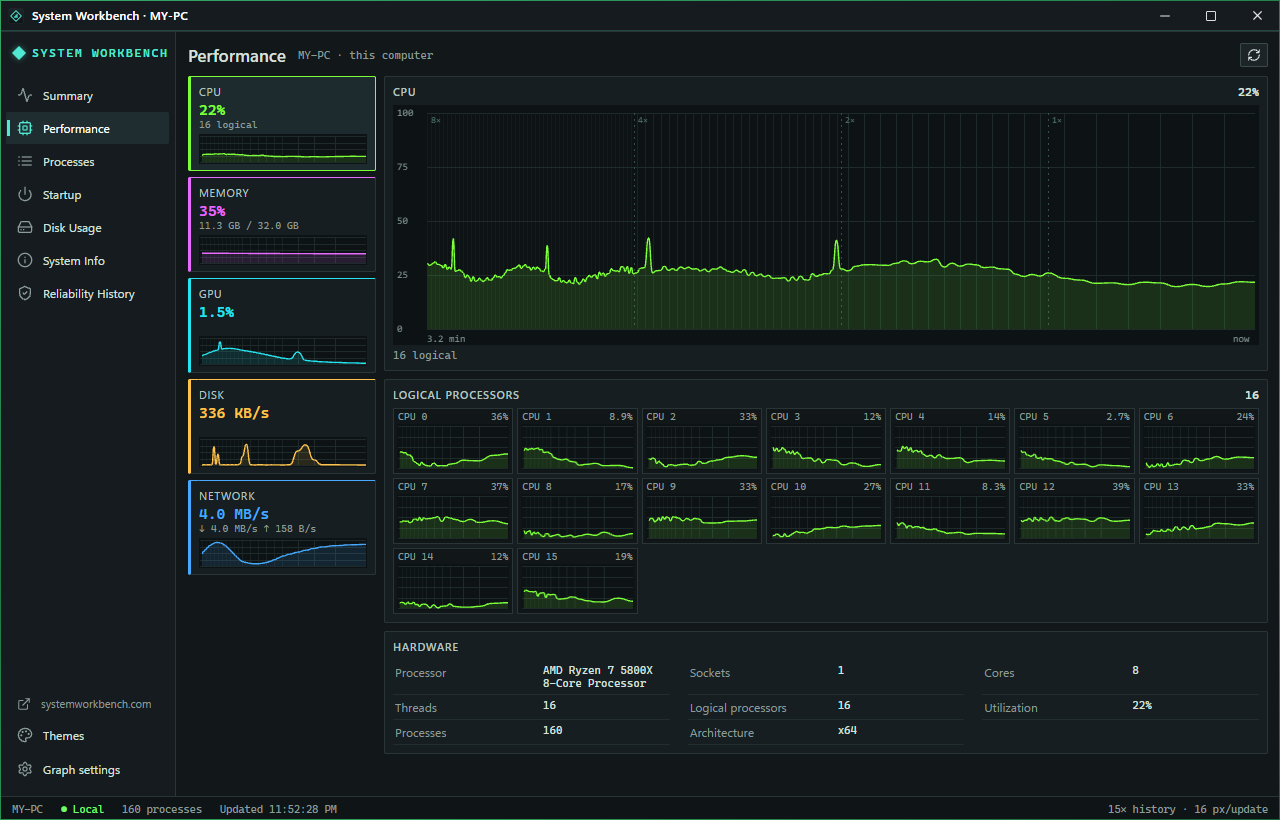
Performance, with a memory
Windows shows you the last minute. System Workbench keeps fifteen.
- CPU (every core on its own small graph), memory, GPU, disk and network, sampled once a second.
- One graph holds up to 15 minutes: the newest stretch at full detail, older stretches compressed. Spikes survive the compression, so a one-second stall still shows.
- Hover a graph to see that moment; click to pin it. The top processes list jumps back to what was running then.
- Graph speed and history length are yours to set.
Processes, in families
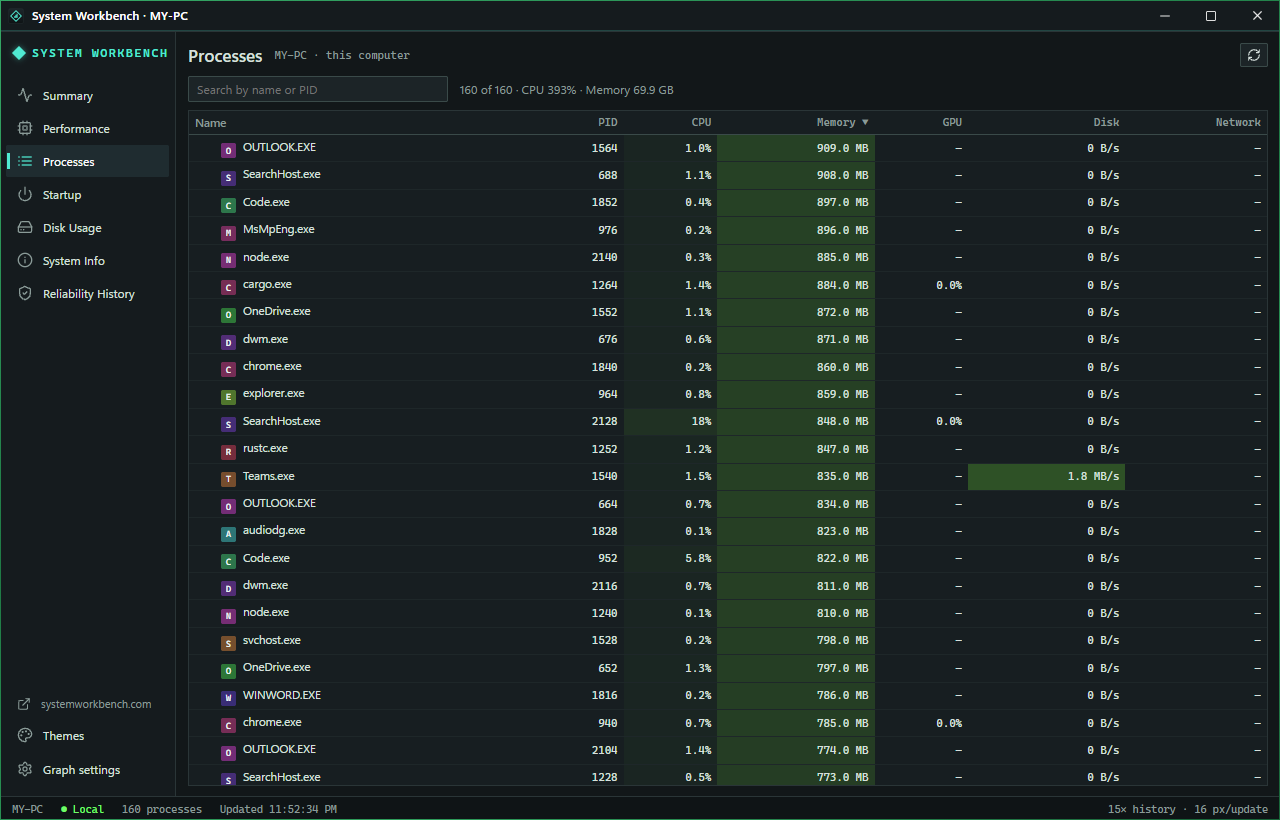
Every program and what it costs right now, grouped under the program that started it.
- Sort by CPU, memory, GPU or disk; search by name or process ID. Busy rows glow so the heavy ones stand out.
- Inspect a process for its full path and start time, or open its folder in Explorer.
- End task, with a confirmation. You can end your own programs; Windows protects the rest.
Startup apps, switched off safely
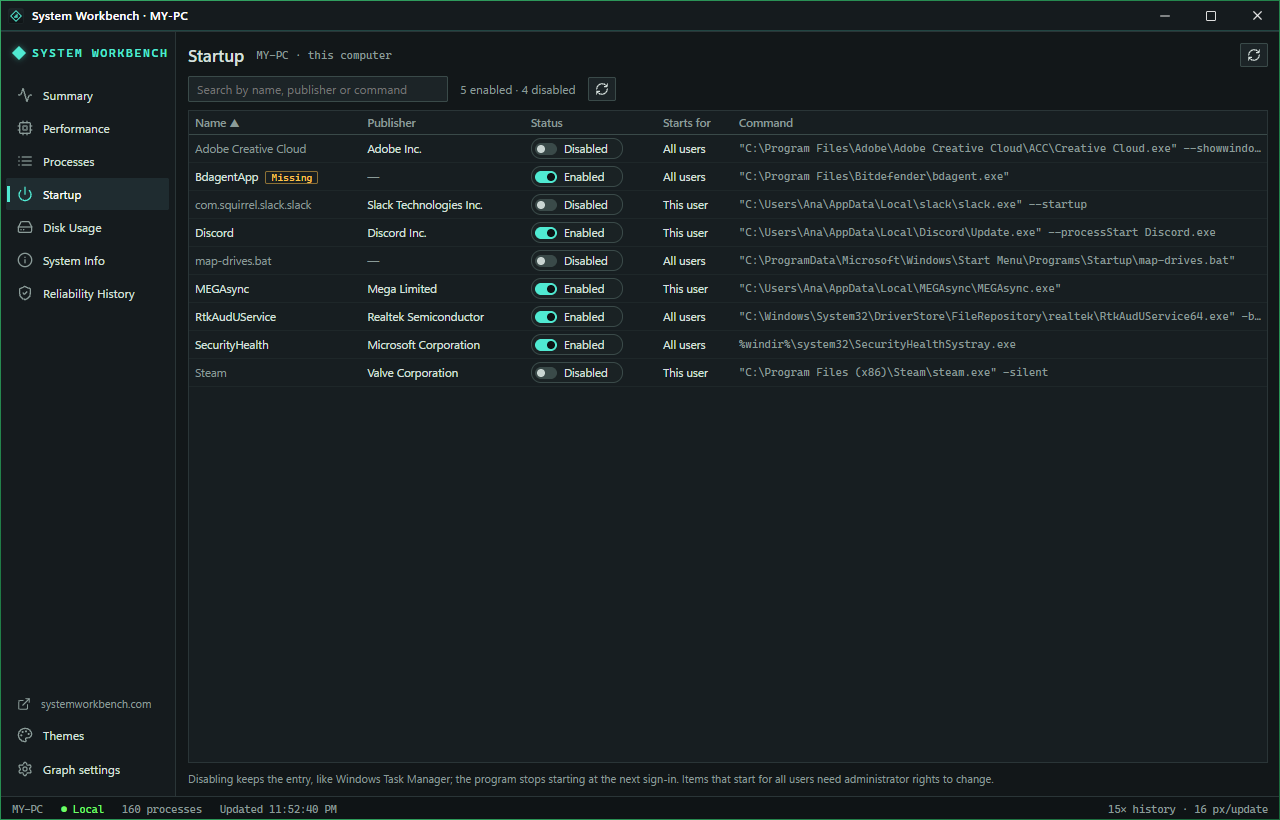
Everything that starts when you sign in, with who made it and an on/off switch.
- Lists the Run entries and Startup folders, for your account and for all users, with the publisher read from each program.
- Switching one off works the way Windows does it: the entry stays, Windows skips it, and switching it back on restores it exactly.
- Leftovers from uninstalled apps are flagged as Missing.
- Programs that start for all users ask for administrator approval first.
Disk Usage: see the space
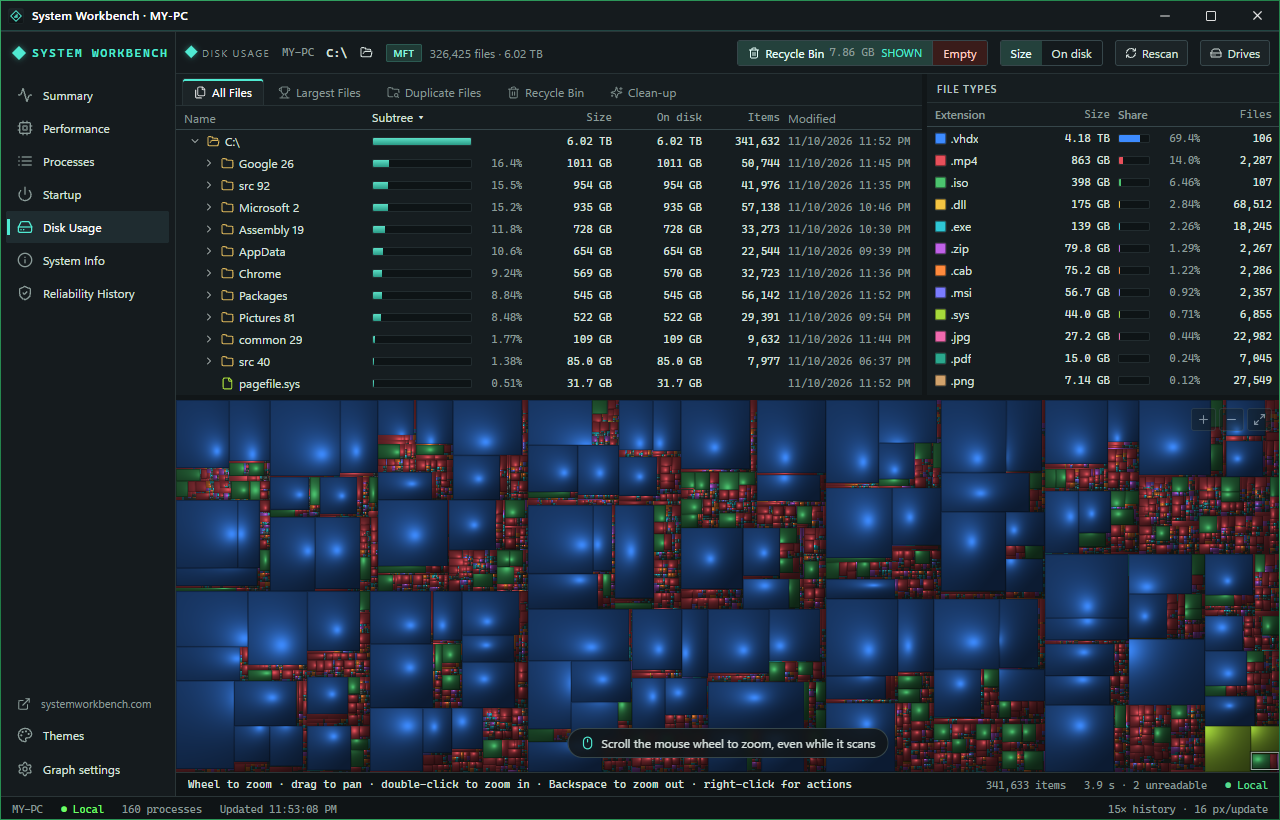
A live map of your drive where every block is a file, sized by how much room it takes. More than twice as fast as WinDirStat and WizTree in our test.
- The map fills in while it scans, biggest folders first, so the answer shows up in seconds instead of at the end.
- Scroll the mouse wheel to zoom smoothly into any corner, even while the scan is still running. Drag to pan; hover for the path.
- A native scanner feeds a disk model compiled to WebAssembly that holds millions of files. In our test a full scan of one drive took 29 seconds; WinDirStat took 83 and WizTree 102.
- All files as a tree, the largest files, and file types by total size (click one to light it up on the map).
- Duplicate files, matched by size, then by content.
- Delete to the Recycle Bin or permanently. The Recycle Bin shows deleted items by their original names, ready to restore.
- One-click clean-ups measure what each would free first: Windows Update cache, temporary files, crash dumps, hibernation, old restore points and the component store.
- Windows and system folders are protected from deletion.
Reliability, scored
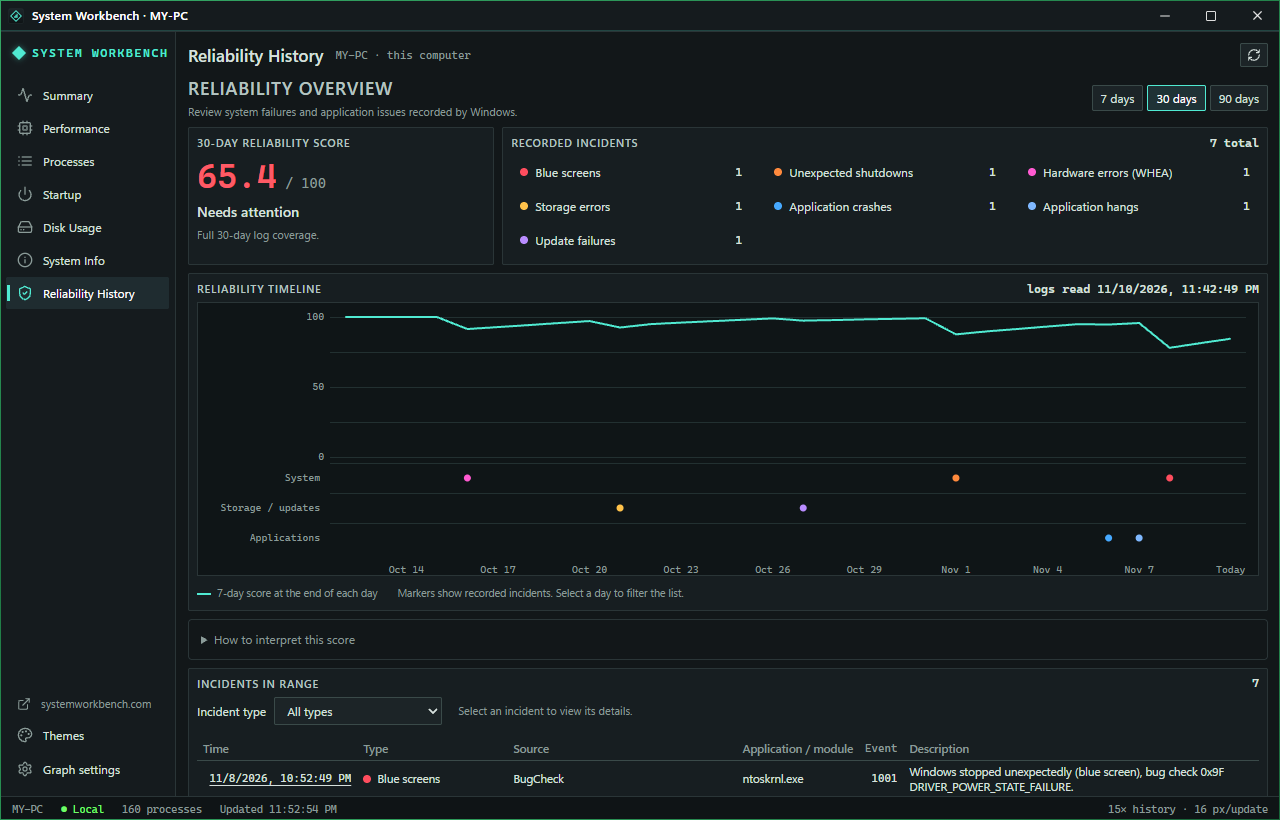
Blue screens, unexpected shutdowns and crashes from Windows' own logs, on one timeline.
- A score out of 100 for the last 7, 30 or 90 days. Recent and serious failures count most; one failure repeated all day counts once.
- Blue screens, unexpected shutdowns, hardware and storage errors, app crashes and hangs, and failed updates, each in its own row.
- Pick a day to see exactly what happened. When the logs do not reach back far enough, it says so instead of guessing.
System info on one page
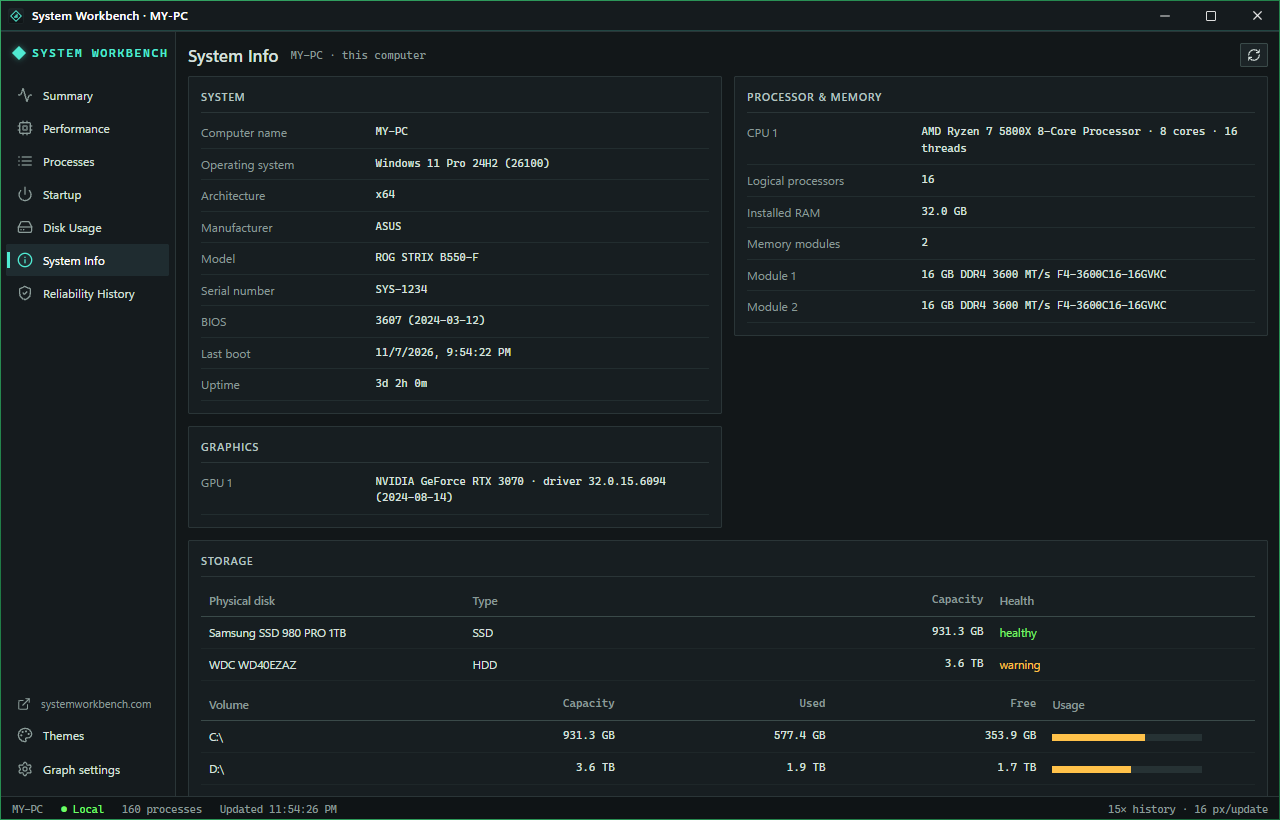
Everything you get asked for when you ask for help.
- Windows edition and build, when it last started, its network addresses.
- Motherboard and BIOS, processor, every memory stick, graphics and driver versions, network adapters.
- Drives with their type, size, free space and health.